Stop Meta AI Camera Access: How to Protect Your Private Photos Now
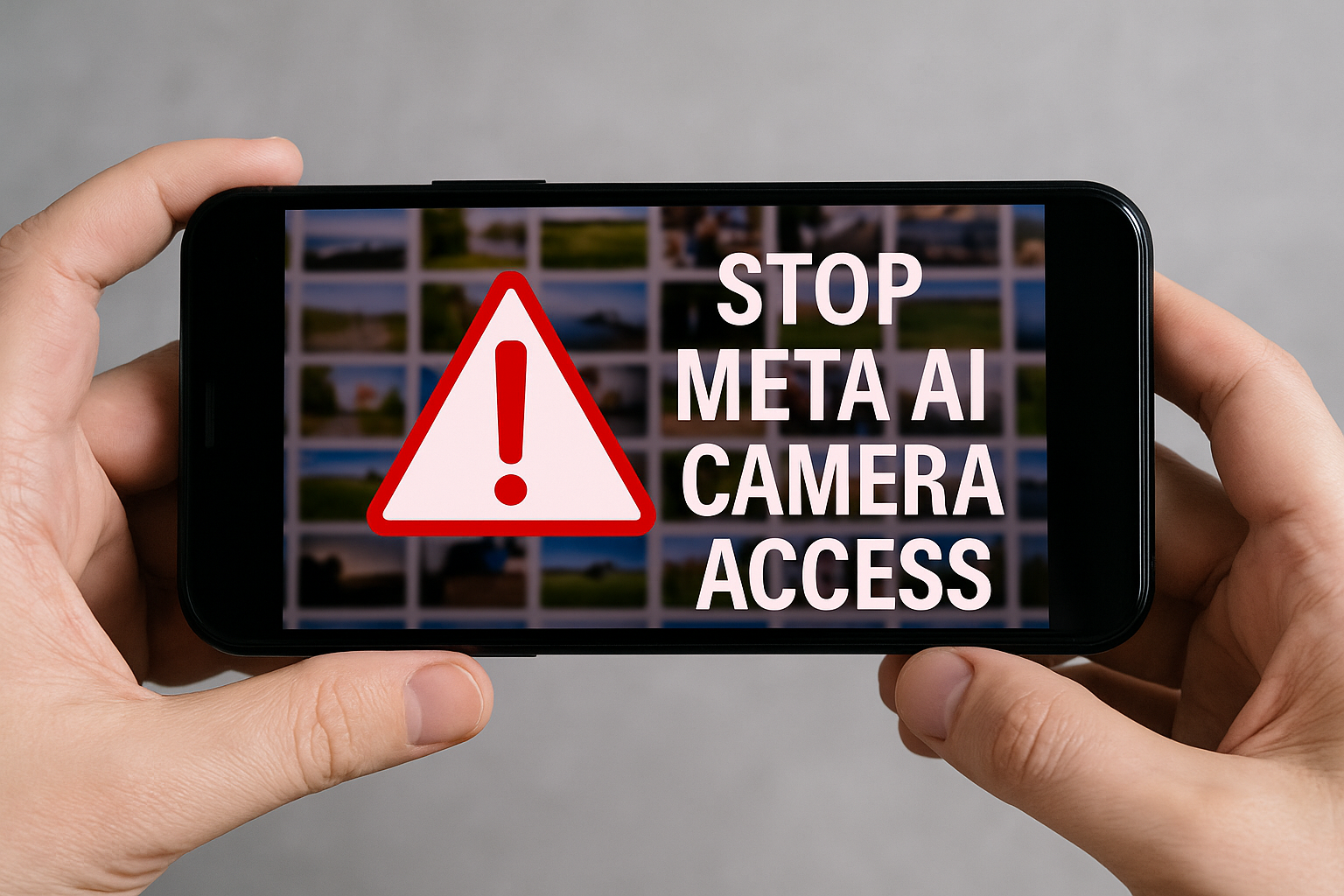
Across the UK, Facebook users have become increasingly worried about a new privacy concern — how to stop Meta AI camera access on their devices. The discovery that Meta’s artificial intelligence could be quietly scanning personal camera rolls has sparked widespread alarm, with many people realising for the first time just how deeply integrated Meta AI is within the Facebook app. For business owners, social media managers, and anyone handling sensitive images on their phones, understanding how to stop Meta AI camera access has quickly become a priority.
At the centre of this issue is Meta’s expanding suite of AI tools that claim to personalise your experience, improve recommendations, and target ads more accurately. To do this, Meta AI needs data — lots of it. Unfortunately, that means your posts, private messages, and, disturbingly, even the photos and videos stored locally on your device. Most people grant permission for the Facebook app to access photos without a second thought, often so they can upload images to their timeline or stories. But once that access is given, the app can continue to interact with your camera roll in ways many users don’t fully grasp. This is exactly why so many are now urgently searching for ways to stop Meta AI camera access before more personal content is quietly indexed in the background.
The problem usually begins with permissions. When you first install Facebook, the app asks for access to your camera and photos. It’s easy to tap ‘Allow’ without realising this opens the door for Meta AI to scan your camera roll whenever it likes, unless you actively change the settings. Meta insists this access is purely for user convenience — to make uploading faster and suggest content that matches your interests. But the vague wording around permissions and the hidden nature of background data scanning have made many feel tricked into sharing far more than they intended.
For small businesses, freelancers, and agencies that keep confidential project images, draft campaigns, or client visuals on their phones, the implications go far beyond personal privacy. Allowing Meta AI to sweep through your camera roll could mean sensitive business materials are absorbed into data models without your knowledge. Worse still, there’s no clear way to know exactly what the AI has indexed or to demand complete deletion once that data has been processed. This makes it vital for professionals to learn exactly how to stop Meta AI camera access before trusting their devices with sensitive work.
So, how can you protect your images? The first step to stop Meta AI camera access is to review your app permissions. On both iPhone and Android, you can head to your device’s settings, locate the Facebook app, and look at the permissions it holds. If you find ‘Photos’ and ‘Camera’ are set to ‘Always’ or ‘Full Access,’ switch them to ‘Only While Using the App’ or disable them completely. If you still need to share images, consider uploading photos through a desktop computer instead. On a laptop or PC, Facebook can’t automatically see your entire phone gallery.
Next, dig into Facebook’s settings. Use the in-app ‘Privacy Checkup’ and ‘Your Information’ sections to limit what Meta AI can collect. Although these settings don’t always show the full scope of what’s happening behind the scenes, they do give you a measure of control — for example, you can switch off facial recognition and turn off location tracking, which feeds even more data to Meta AI. Doing this regularly is a good habit, especially since permissions can silently reset after updates.
Another useful habit is clearing the app cache and stored data on your phone. Facebook caches huge amounts of information, some of which can include thumbnails or metadata about your photos. Deleting this reduces what’s easily available to the app. You’ll find the clear cache option in Facebook’s settings or in your phone’s app management section.
Be mindful of updates too. Ironically, updates that promise to ‘improve your experience’ sometimes include changes to permissions or new ways for Meta AI to collect your data. Always read update notes and check your permissions afterwards. If an update asks for new access that feels excessive, consider delaying it or researching what exactly has changed before tapping ‘Accept.’
It’s also important to think about integrations. Many business users connect their Facebook accounts to Instagram, WhatsApp or Meta’s Ads Manager. Each of these connections can create overlapping permissions. For instance, a photo you upload to Instagram could be accessible to Facebook’s AI systems if the accounts are linked. To truly stop Meta AI camera access, you need to regularly check which apps are connected and revoke any you no longer need.
Another layer of protection is using separate devices. Keep your work phone strictly for business use and your personal phone clear of any Meta apps. By doing this, you dramatically cut down the chance that Meta AI can access sensitive family photos or unrelated personal files. When handling client work or proprietary visuals, store only what you need to post — don’t keep entire archives of un-posted images on a device with the Facebook app installed.
Unfortunately, once your photos have been scanned by Meta AI, getting them removed from the AI’s training data is almost impossible. While you can delete posts or photos you uploaded, there’s no clear way to force Meta to purge any copies or insights it gained through background indexing. This is exactly why so many experts stress the need to stop Meta AI camera access before you share anything you wouldn’t want absorbed by an opaque machine learning model.
For teams and agencies, regular training and clear policies are essential. Make sure everyone handling social media on your behalf knows how to check permissions, restrict access and store images securely. Hold privacy refresher sessions and encourage staff to use separate devices if they handle especially sensitive material. The fewer devices with open permissions, the less chance your business has of leaking valuable data to Meta AI.
Beyond personal and business measures, there’s a broader debate happening too. Privacy watchdogs, journalists and digital rights groups are demanding clearer opt-outs and stricter controls on how big tech companies like Meta deploy AI tools. If you feel strongly about this, you can add your voice — support privacy advocacy organisations, share trusted resources with your network and, where appropriate, submit complaints to the Information Commissioner’s Office (ICO) if you suspect your data is being mishandled.
Many people feel powerless in the face of vast AI systems that run in the background of everyday apps. But every action to stop Meta AI camera access makes a difference — from tweaking a single phone setting to lobbying for stronger data protection laws. Staying informed and proactive is the best defence against silent data harvesting that chips away at your privacy day by day.
In the end, whether you’re a casual Facebook user or a business owner juggling client assets and confidential visuals, learning how to stop Meta AI camera access isn’t just good practice — it’s necessary. Take a few minutes today to review your permissions, adjust your settings and train your team. By doing so, you protect your images, your intellectual property and your peace of mind in an age when your camera roll shouldn’t be fair game for an algorithm you didn’t invite. The message is clear: stop Meta AI camera access now, before your private moments become just another data point for Big Tech.